Guide: Filter Center and Whitelist
This guide helps you reduce false positives without weakening protection.
Why This Page Matters
Most user issues come from one of these two causes:
- outdated filter feeds,
- allowlist rules that are too broad.
This page gives a safe operating model for both.
Where to Configure
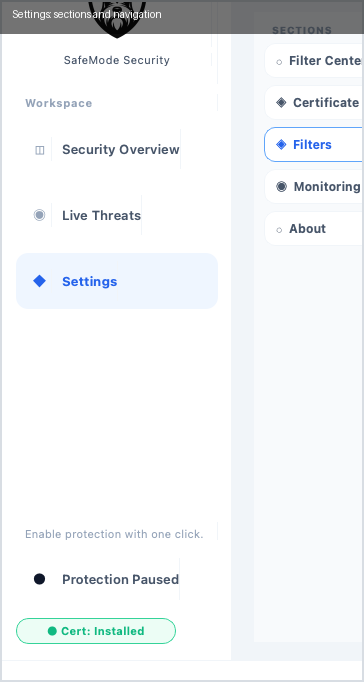
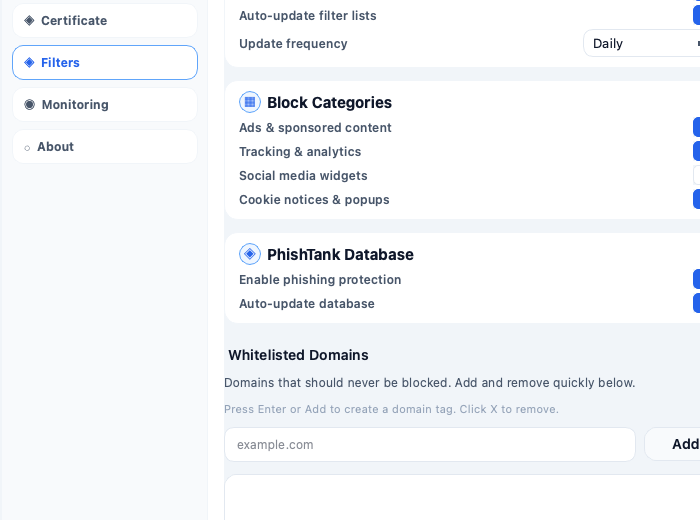
Open Settings and use the sections from the left menu.
Step 1: Update Filters Correctly
In Filter Center:
- run Update all filters,
- wait for completion,
- confirm counts are not zero,
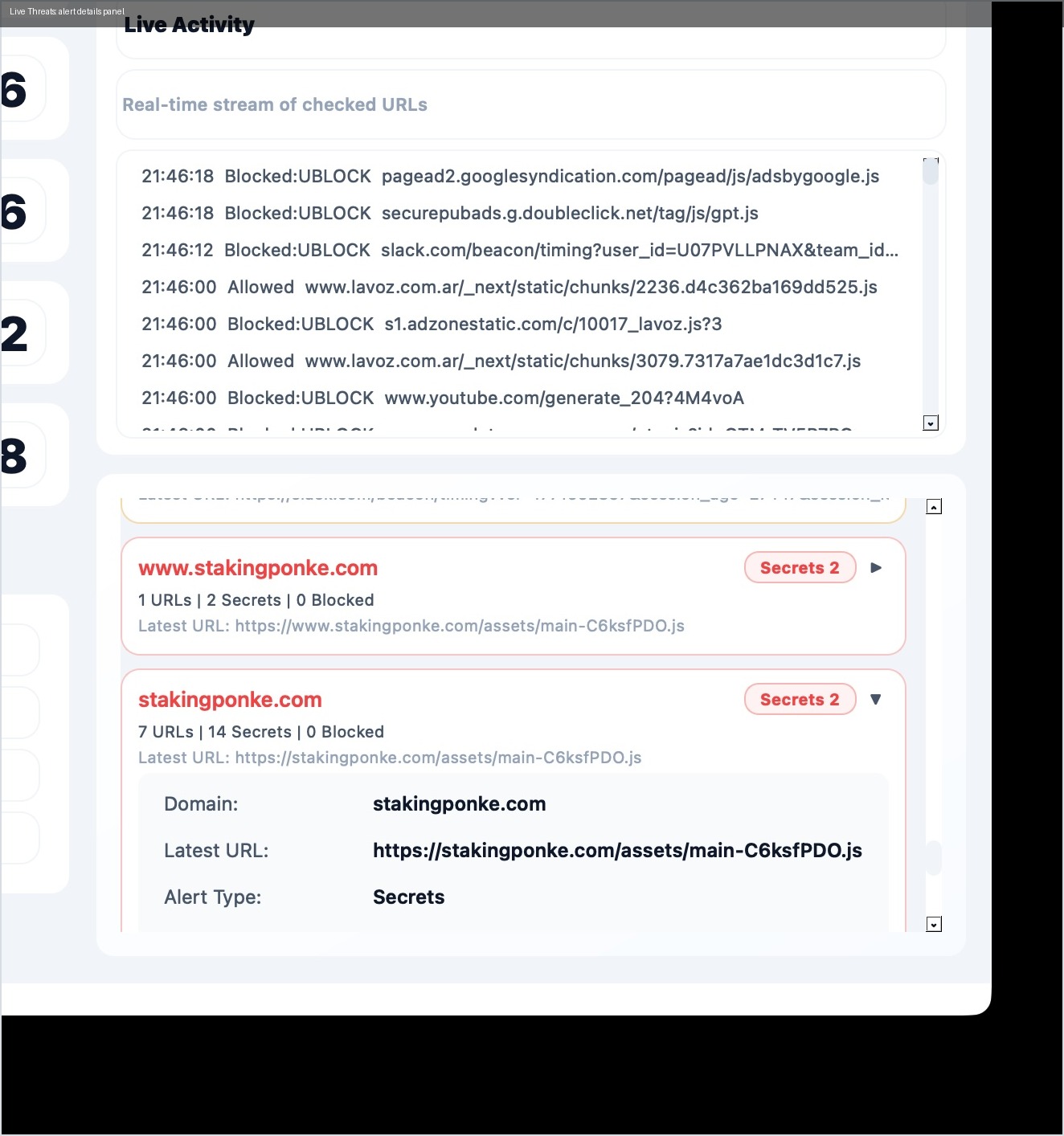
- open Live Threats and verify traffic is still being inspected.
Operational rule:
- if a source fails, retry that source first before changing any security toggle.
Step 2: Read Blocking Health in Overview
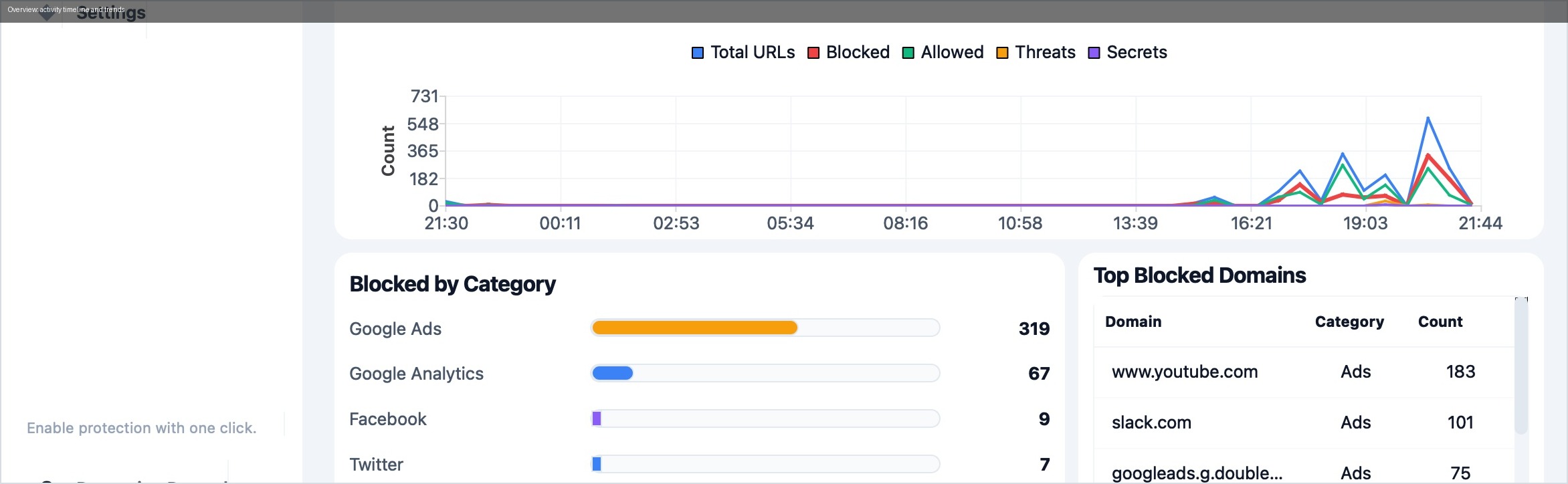
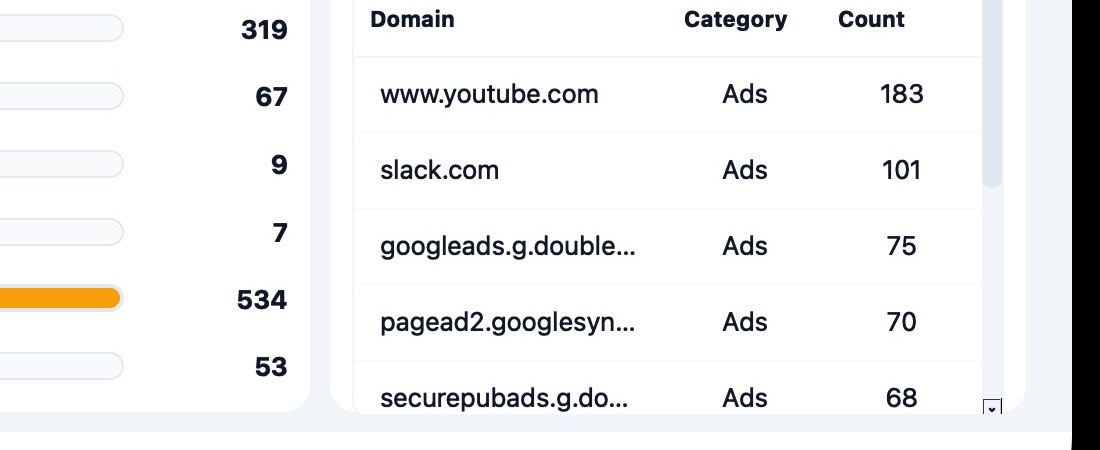
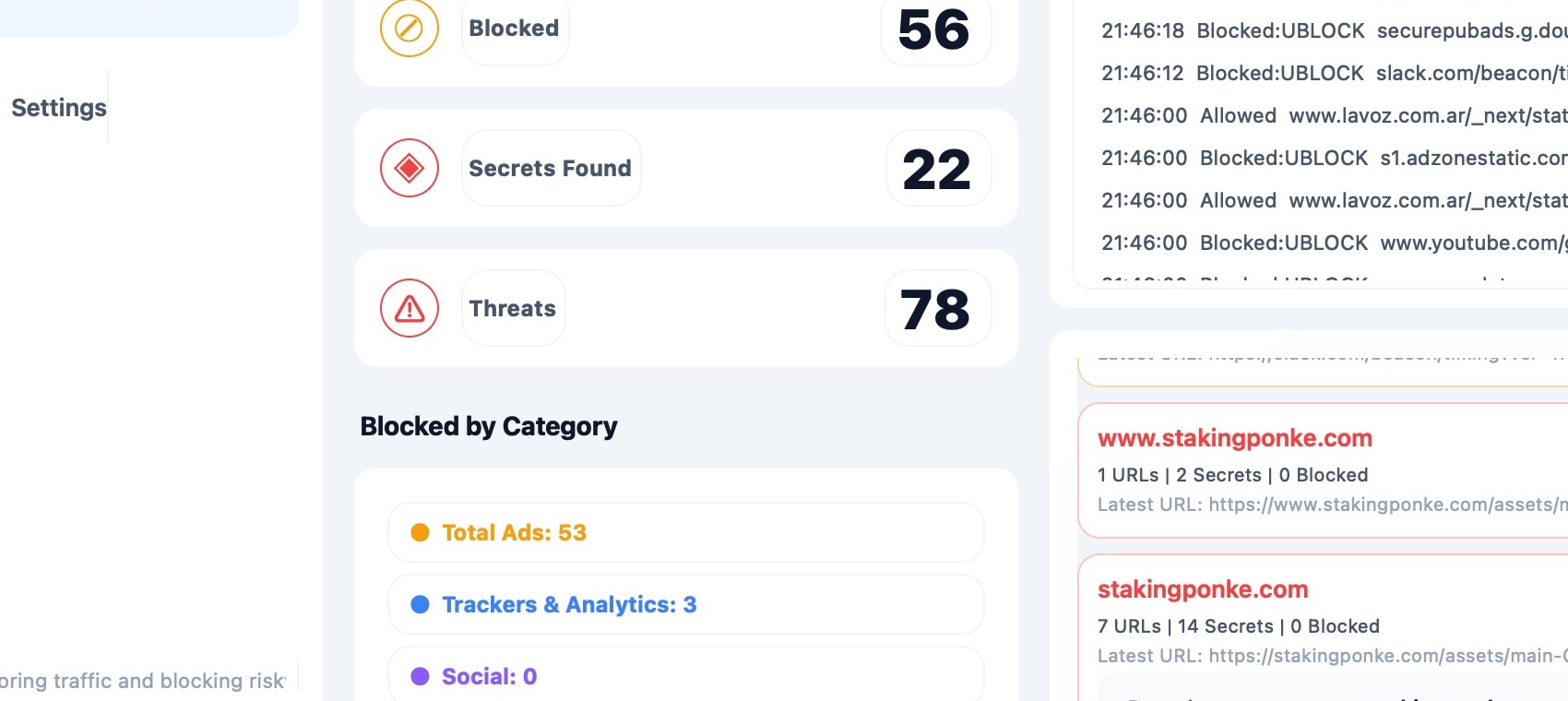
Use the dashboard trend as your quality signal.
Healthy pattern:
- blocked activity is visible,
- threat categories are not exploding,
- timeline keeps moving during browsing.
Step 3: Use Allowlist with Narrow Scope
Allowlist only specific domains you trust and truly need.
Do:
- add one domain at a time,
- verify impact immediately,
- keep notes on why the exception exists.
Do not:
- allowlist broad networks,
- allowlist unknown domains to silence alerts.
Step 4: Validate After Every Change
After update or allowlist changes, check:
- monitor still captures events,
- business-critical page now works,
- suspicious/phishing alerts still appear when relevant.
Quick Decision Matrix
| Situation | Best first action |
|---|---|
| Pages start breaking after update | Isolate by source and retry selectively |
| One trusted domain is blocked | Add narrow allowlist for that exact domain |
| Too many noisy alerts | Check stale feeds before disabling protection |
| Suspicious or phishing spike | Keep protection ON and investigate details |