Guide: Getting Started
This guide helps you complete a stable first setup in one session and verify that protection is actually running.
Outcome
At the end, you should have:
- certificate installed and trusted,
- monitor and proxy running,
- live events visible,
- baseline filters enabled.
Prerequisites
- administrator permission on your device,
- internet access,
- 5 to 10 minutes.
Step 1: Launch the app
Install from the latest release:
After launch, confirm that the top area and status strip are visible.

What this image shows: the main header and first status row that confirm the app loaded correctly.

What to verify now: core status controls are visible and the app is responsive.
Step 2: Complete certificate setup
If this step is incomplete, HTTPS pages cannot be inspected correctly.
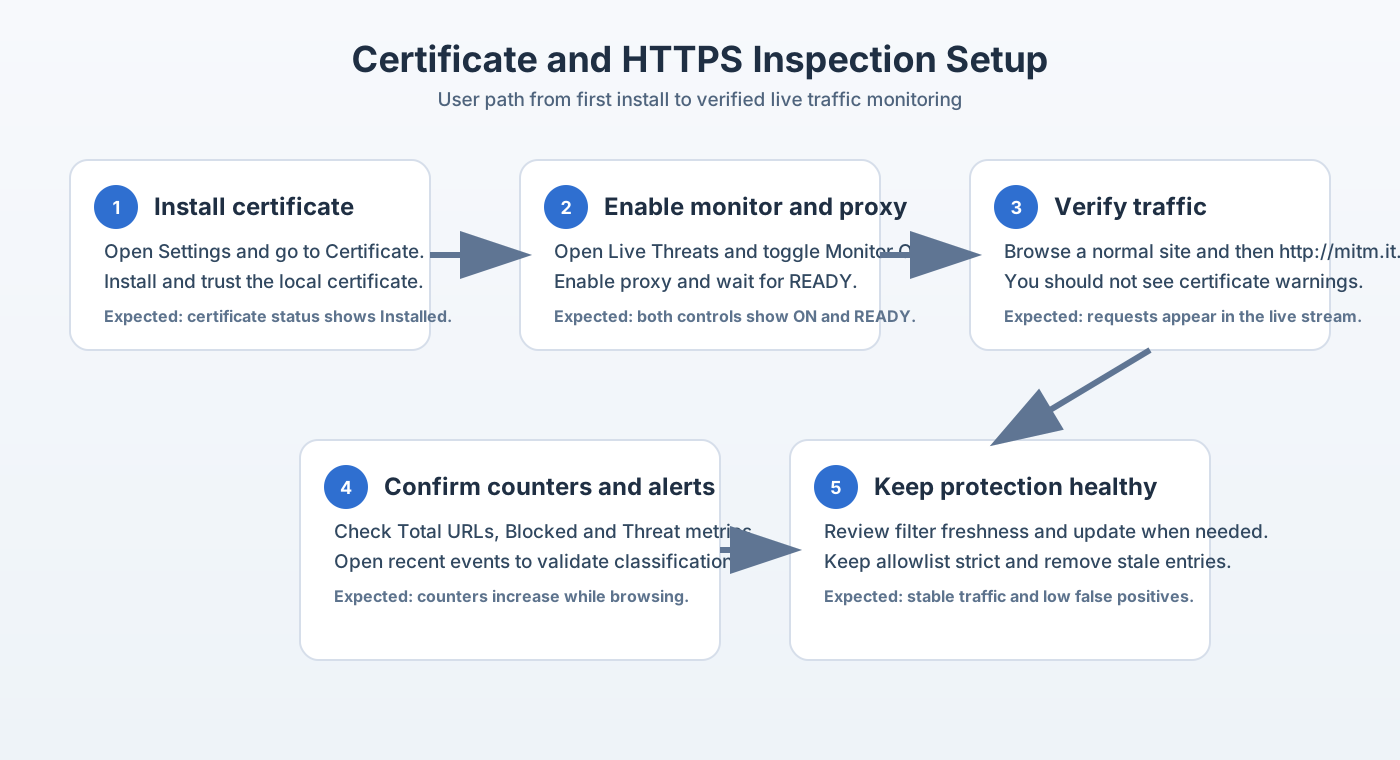
What this flow means: install certificate, enable monitor/proxy, validate traffic, then confirm counters.
In-app path:
- Open Settings.
- Open Certificate.
- Install and trust the local certificate.
- Confirm status is healthy.
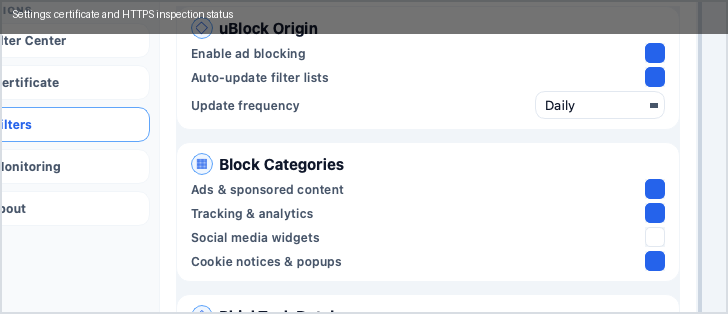
What to verify now: certificate status indicates installed/trusted.
Step 3: Enable monitoring
Go to Live Threats and turn Monitor + Proxy ON.

What this image shows: the exact controls that must be ON before traffic inspection starts.

What to verify now: both controls stay ON after a few seconds (no quick fallback to OFF).
Step 4: Validate with real browsing
Browse normal sites for 30 to 60 seconds and check data movement.
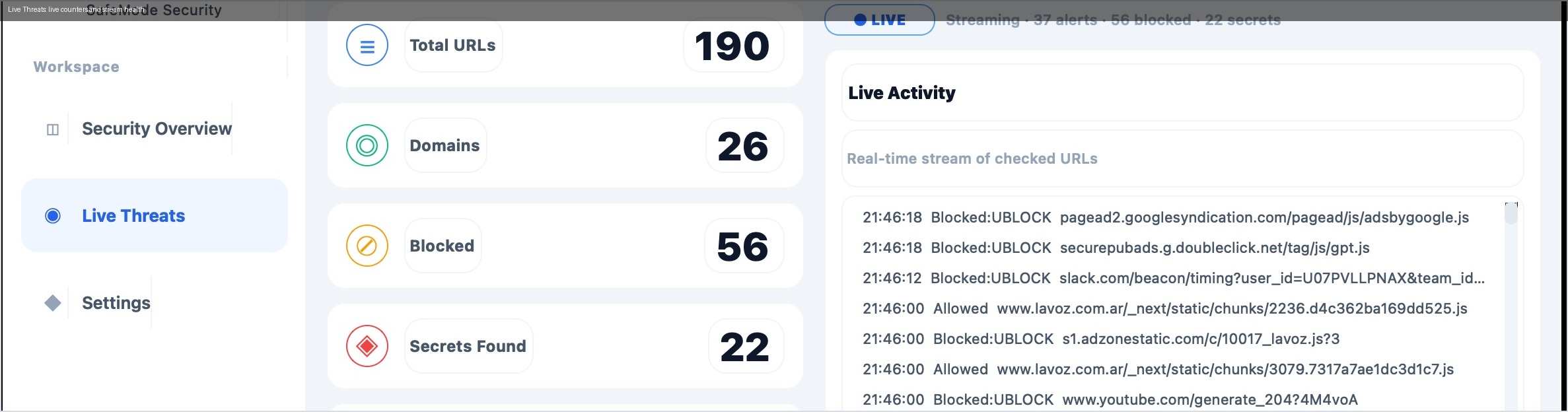
What this image shows: counters rising while traffic is being inspected.
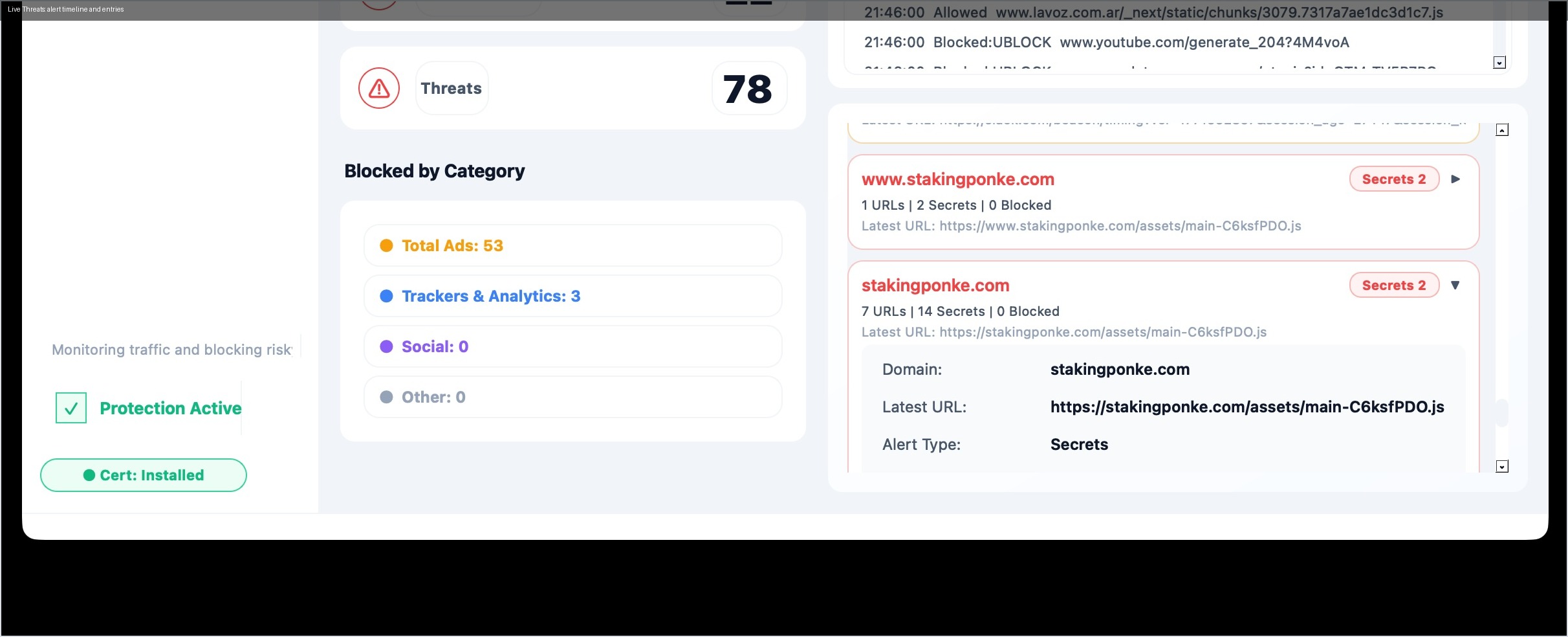
What this image shows: a real-time event stream with allowed/blocked entries.
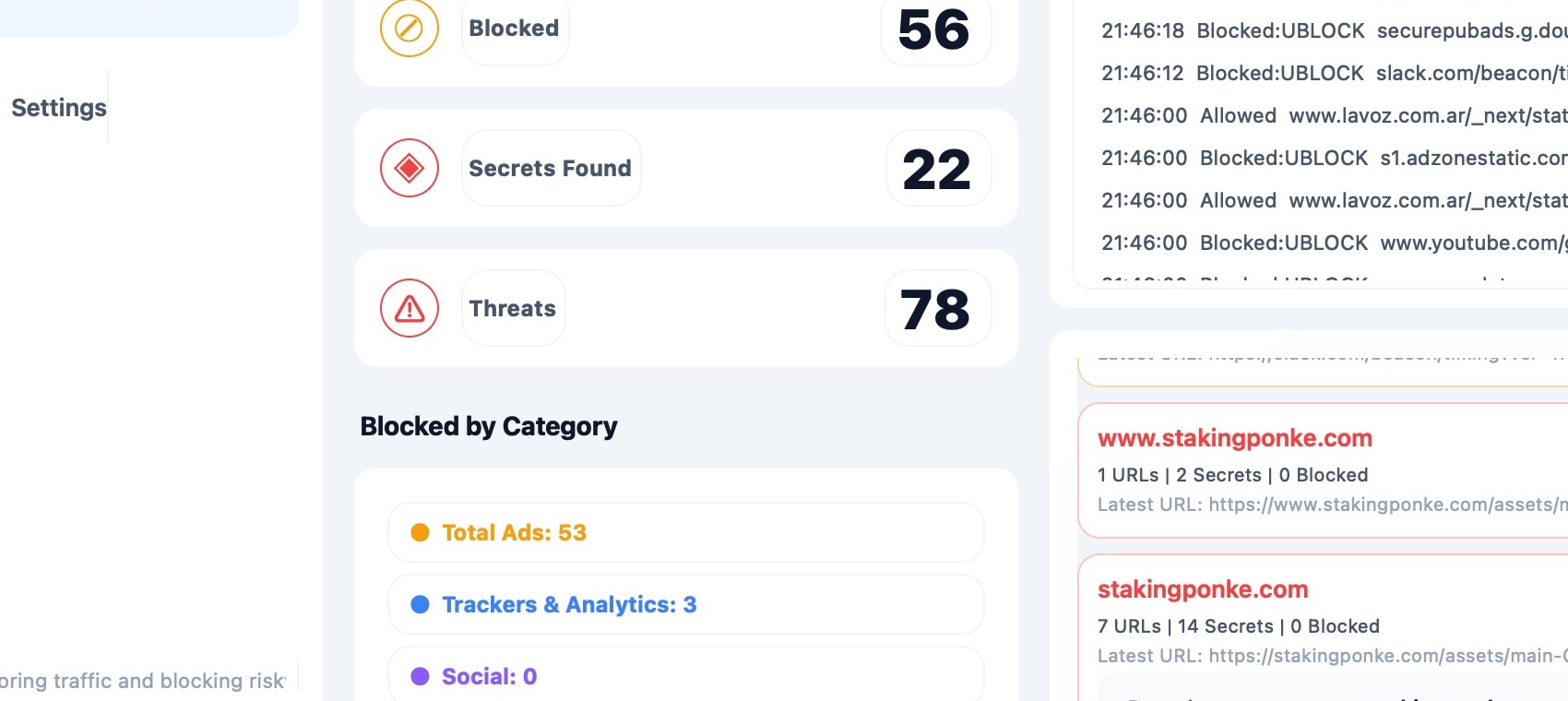
What to verify now: new rows appear continuously while you browse.
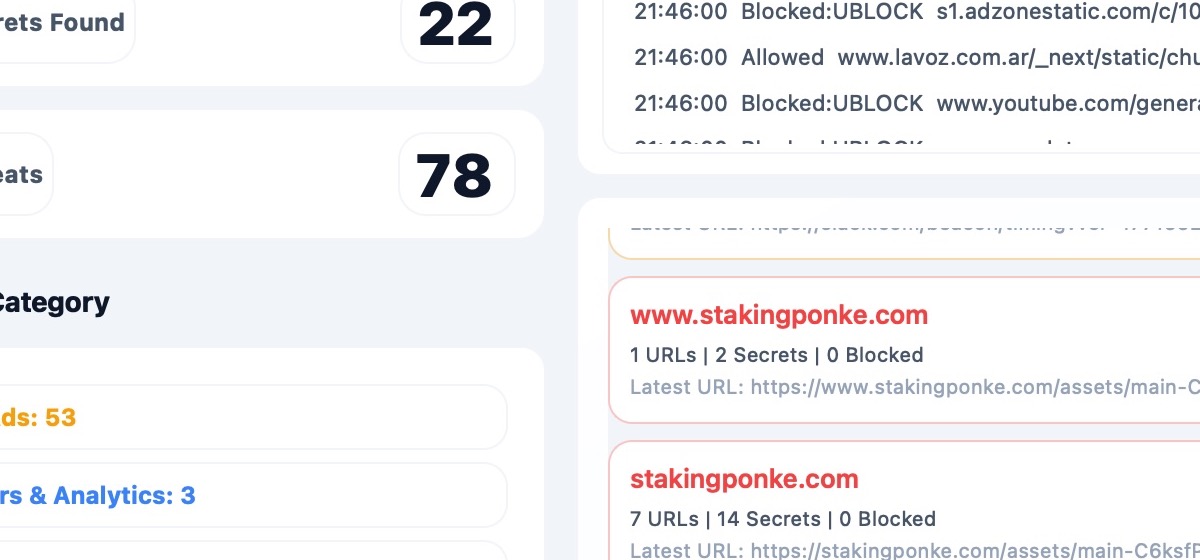
What this image shows: incident cards with context for triage decisions.
Step 5: Optional terminal validation
Use terminal checks when you want hard confirmation beyond the UI.
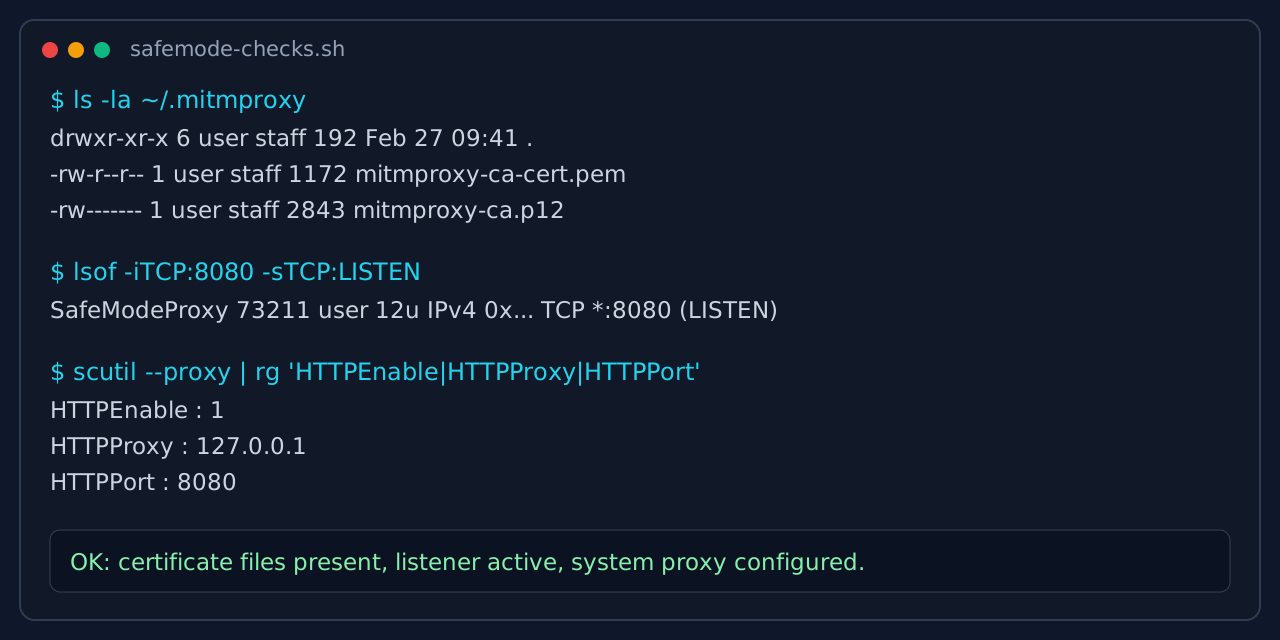
What this image shows: certificate files, listener on port 8080, and system proxy values.
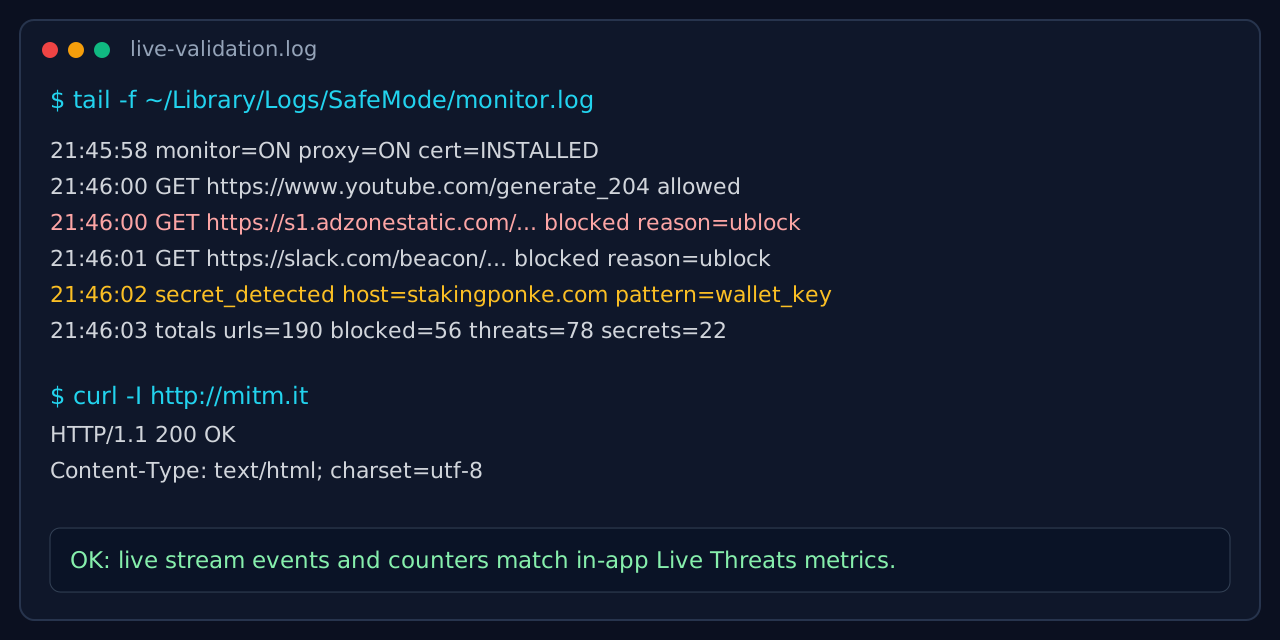
What to verify now: logs show live events and counters consistent with Live Threats.
Step 6: Apply baseline security toggles
In Settings, keep these enabled:
- phishing protection,
- ad/tracker filtering,
- security notifications.
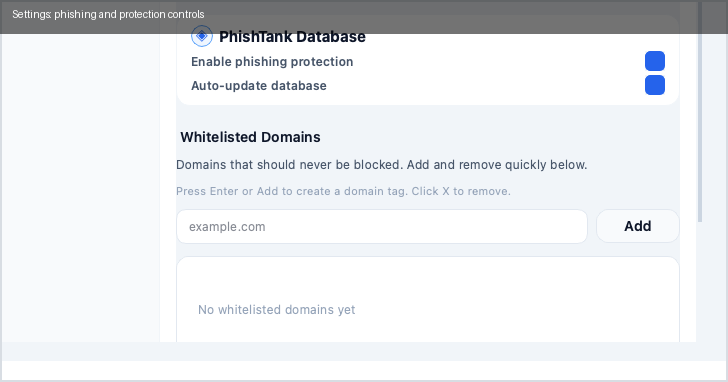
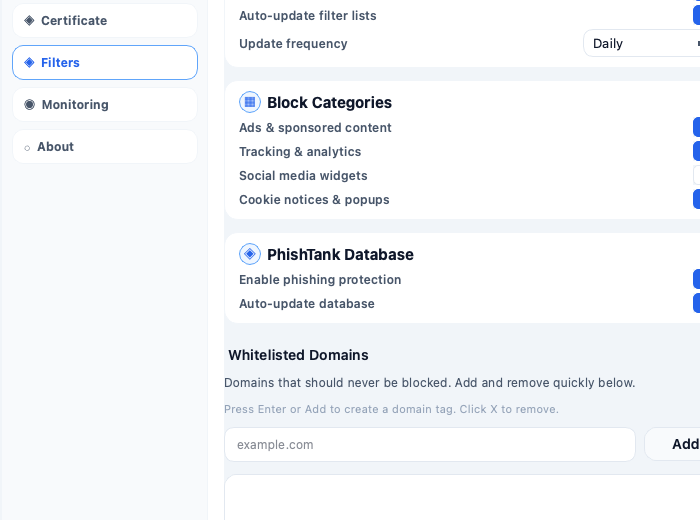
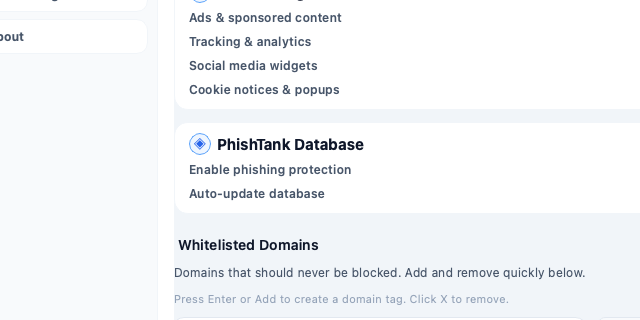
What to verify now: toggles reflect your desired policy and remain enabled.
If something fails
- Browser warning persists: repeat certificate trust step.
- Monitor ON but no traffic: verify proxy remains ON.
-
Too many false blocks: update filters and review allowlist.